The problem
Sometimes you hear a piece of audio and want to build on it, but you don't know the chords. Or your DAW can't detect chords at all.
MIDIGEN uses the audio as inspiration. The goal is not a perfect transcription. It gives you a musical starting point you can change and build on.
Step by step
- Drop in your audioClick Choose Audio Files or drag a file in. MIDIGEN finds the chords and the tempo.
- Pick the partsChords and Bass are ticked to begin with. Click All instruments for every part except drums, or All + drums for everything. Set Complexity and Sensitivity, then click Generate MIDI.
- Listen in the studioYour audio is on the top track, then the chords with chord markers, then the other parts. Press play. Solo or mute any track and change its sound.
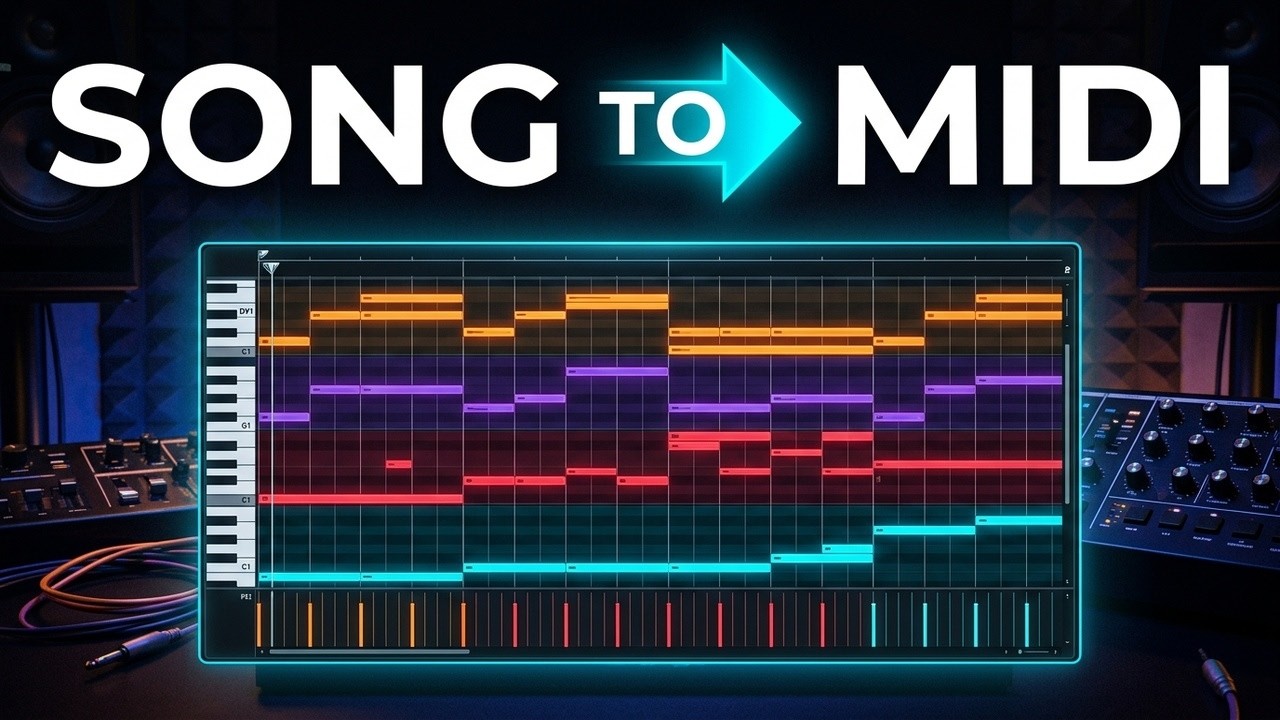
- Edit the MIDIOpen a track in the piano roll. Draw or erase notes, quantize, transpose that track and change the velocity.
- Export to your DAWClick Export MIDI. Open the file in your DAW and put your own instruments on the parts.
Tip: Open the MIDI file in your DAW (don't drag it into a project) to see the chord markers along the top. Handy if your DAW can't detect chords: play along or record your own parts over them.
Common questions
Is it an exact transcription?
No. From a full mix it writes new parts inspired by the chords and rhythm it heard. To transcribe stems note for note, drop in your stems and use Stem mode.
Can I change the sounds?
Yes. The sounds in the app are a preview. Pick another sound for any track, or use your own instruments after you export.
What if the drums sound messy?
Leave Drums unticked, or edit them in the piano roll. For drum audio, drums2midi gives you a transcription of the drums.