The problem
A generated MIDI idea is easier to judge when you can hear it through the instruments you actually use.
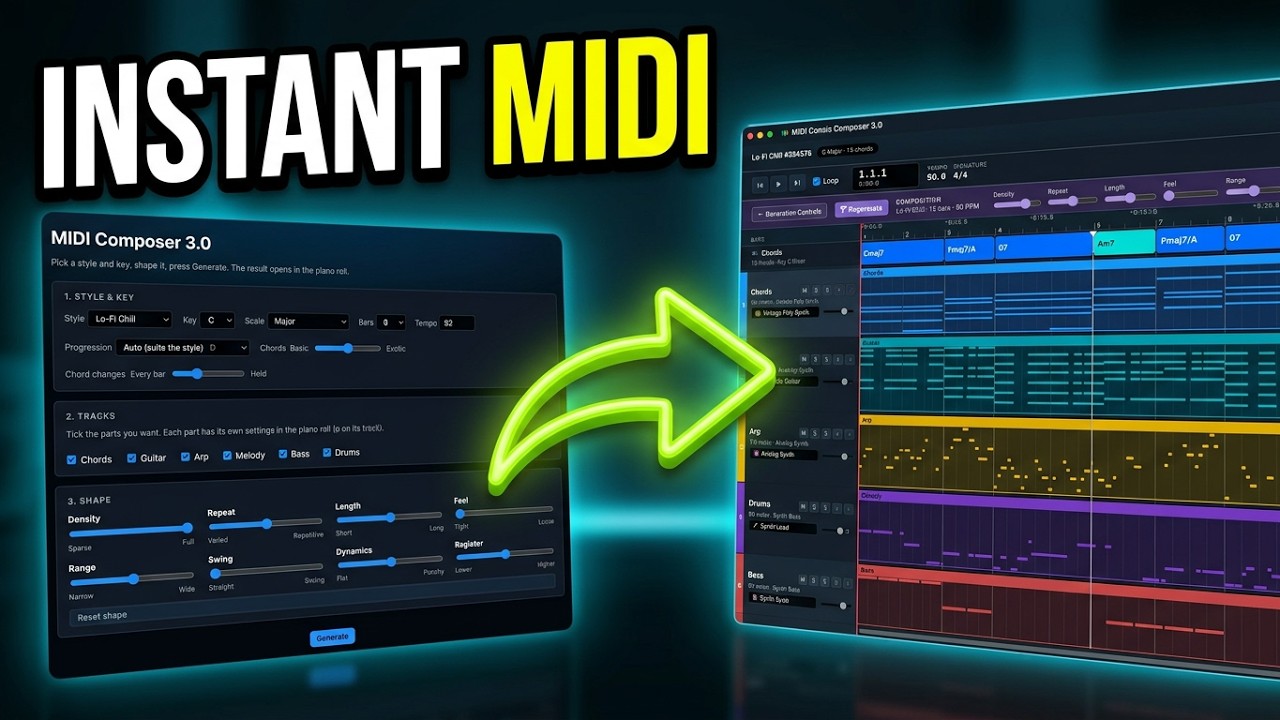
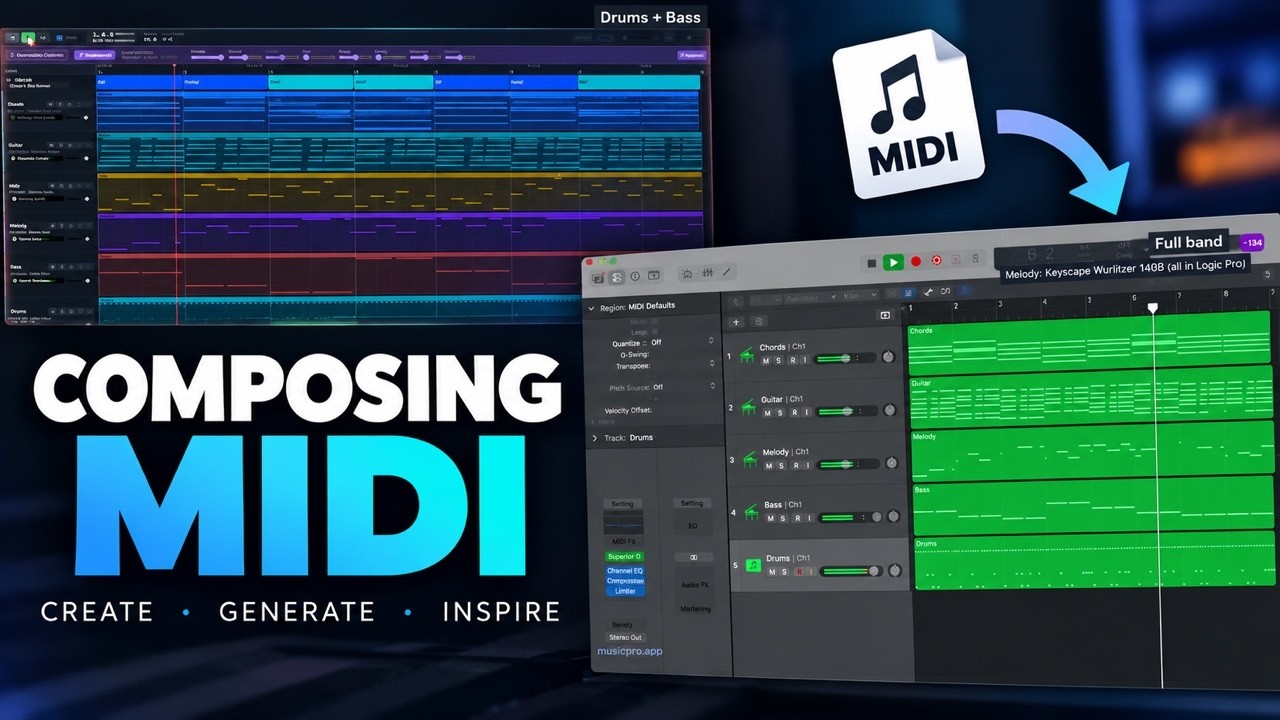
This demo shows MIDI Composer 3.0 inside Music Pro Access, with local instruments on the tracks and quick ways to try a different arrangement.
Step by step
- Choose a starting styleStart with a style such as Boom Bap or Jazz Hop, then set the key, tempo and length for your idea.
- Change the chordsUse New chords to try another progression, and adjust how often the chords change.
- Regenerate the compositionPress Regenerate to make another version. Toggle + chords to choose whether a new progression is included.
- Use instruments on your computerAssign installed instruments to individual MIDI tracks, then listen, solo parts and edit the notes in the piano roll.
Tip: Try one change at a time so you can hear what the new chords or regenerated parts contribute.
Common questions
Can I use instruments installed on my computer?
Yes. In Music Pro Access, choose a local instrument for each MIDI track.
Can I change the chords without rebuilding everything?
Yes. New chords and the + chords option let you explore different progressions and arrangements.
Can I edit the MIDI notes?
Yes. Open the piano roll and edit the generated parts.